
How to Set Face Detection Function, Face recognition, also known as facial recognition, is a biometric technology that identifies or verifies an individual by analyzing and comparing their unique facial features from a digital image or a video frame against a database of known faces.1 It’s a type of computer vision that uses artificial intelligence (AI), machine learning, and deep learning algorithms to “understand” and interpret human faces.2
How Face Recognition Works:
The process generally involves several key steps:
1.
Face Detection: The first step is for the system to detect and locate a human face within an image or video stream.3 This can involve identifying patterns like the presence of eyes, a nose, and a mouth.4 Algorithms like Haar cascades or more advanced deep learning models (e.g., Convolutional Neural Networks – CNNs) are used for this.5
2.Face Analysis/Feature Extraction: Once a face is detected, the system analyzes its unique features.6 This isn’t about simply matching a photograph; it’s about mapping the geometry and distinctive characteristics of the face.7 The software measures various “nodal points” or “facial landmarks,” such as:
ā¦Ā The distance between the eyes.8
ā¦Ā The shape and width of the nose.9
ā¦Ā The depth of the eye sockets.
ā¦Ā The distance from forehead to chin.10
ā¦Ā The shape of the cheekbones, lips, and jawline.11
ā¦Ā Unique asymmetries or distinguishing marks.
This analysis transforms the analog information of the face into a set of digital data, often called a “faceprint” or “facial signature.”12 This is essentially a mathematical formula or a unique numerical code representing the individual’s face.13
3.Data Conversion/Encoding: The extracted facial features are converted into a mathematical representation or a “template.”14 This digital template encapsulates the facial measurements and features in a format that the system can easily store and compare.15 Modern systems often use deep learning embeddings (e.g., FaceNet) to map faces into a high-dimensional space where similar faces are grouped closer together.16
4.Face Matching/Comparison: The newly generated faceprint or template is then compared against a database of known faces.17 This comparison can be performed in two main ways:
ā¦Ā 1:1 Verification (Facial Verification/Authentication): The system compares a new faceprint to a single, pre-registered faceprint to confirm if the person is who they claim to be (e.g., unlocking a smartphone, verifying identity for online banking).18
ā¦Ā 1:N Identification (Facial Identification/Search): The system compares a new faceprint against a large database of many known faces to identify an unknown individual (e.g., identifying a suspect from surveillance footage).19
Algorithms calculate the similarity or distance between the faceprints.20 If the similarity exceeds a predefined threshold, a match is confirmed.21
Applications of Face Recognition:
Face recognition technology is widely used across various sectors due to its convenience and efficiency:22
ā¢Ā Security and Access Control:
ā¦Ā Unlocking smartphones, laptops, and other devices (e.g., Apple’s Face ID).23
ā¦Ā Keyless entry to buildings, offices, and secure areas.24
ā¦Ā Time and attendance tracking for employees.25
ā¦Ā Automobile security.26
ā¢Ā Law Enforcement and Public Safety:
ā¦Ā Identifying criminals or suspects from surveillance footage or databases.27
ā¦Ā Finding missing persons.28
ā¦Ā Border control and immigration to streamline passenger screening.29
ā¦Ā Monitoring large public gatherings for security threats.30
ā¢Ā Financial Services (Fintech):
ā¦Ā Secure online banking and mobile payment authentication.31
ā¦Ā Cardless ATM transactions.32
ā¦Ā Fraud prevention and identity verification during account opening (eKYC).33
ā¢Ā Retail and Marketing:
ā¦Ā Identifying VIP customers for personalized service.34
ā¦Ā Detecting known shoplifters or individuals on a “blacklist.”35
ā¦Ā Analyzing customer demographics (age, gender) for targeted advertising.36
ā¦Ā Queue management and optimizing store layouts.37
ā¦Ā Patient identification for streamlined check-ins and preventing medical errors.38
ā¦Ā Controlling access to sensitive patient records.39
ā¦Ā Monitoring patients in assisted living facilities.40
ā¦Ā Diagnosing rare genetic disorders by analyzing facial features.41
ā¦Ā Automatic tagging of friends in photos (though this feature has faced privacy concerns and has been reduced or removed by some platforms).
Challenges and Concerns:
Despite its widespread use, face recognition technology faces several challenges and ethical concerns:42
ā¢Ā Accuracy and Bias: While highly accurate in ideal conditions, performance can vary based on lighting, angles, expressions, aging, and occlusions (e.g., masks, glasses).43 There have also been documented cases of algorithmic bias, where systems perform less accurately on certain demographic groups (e.g., women, people of color).44
ā¢Ā Privacy Concerns: The widespread deployment of facial recognition raises significant privacy issues, as it allows for mass surveillance and the tracking of individuals without their explicit consent.45
ā¢Ā Data Security: The storage of sensitive biometric data (faceprints) raises concerns about potential breaches and misuse.46
ā¢Ā Misidentification: While rare, misidentification can lead to serious consequences, particularly in law enforcement applications.
ā¢Ā Deepfakes: The rise of synthetic media (deepfakes) poses a challenge to facial recognition systems, as realistic but fake faces could potentially fool verification processes.47
Due to these concerns, there’s ongoing debate and development of regulations to govern the ethical and responsible use of face recognition technology globally.
.
How to Set Face Detection Function (WEB 3.0)
1.Product Model and Firmware Version
Any model and firmware with Face Detection supported.
(This tutorial is based on WEB 3.0 firmware)
Interface may vary on some models and firmware.
1.Operation Description
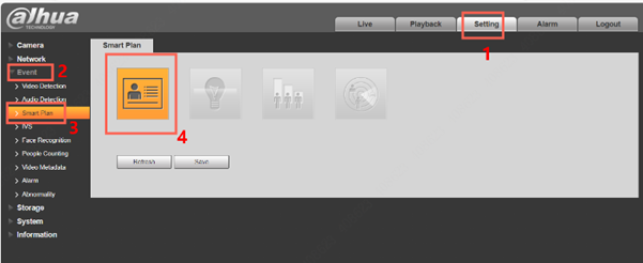
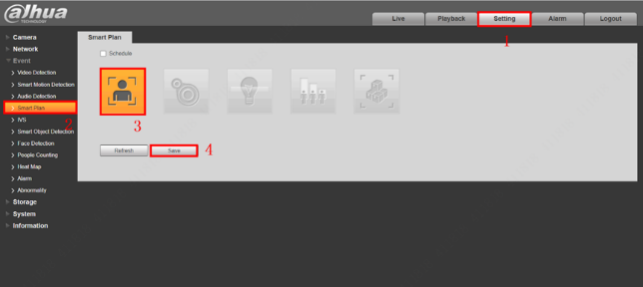
2.Enable Face Detection in Setting>Event>Smart Plan

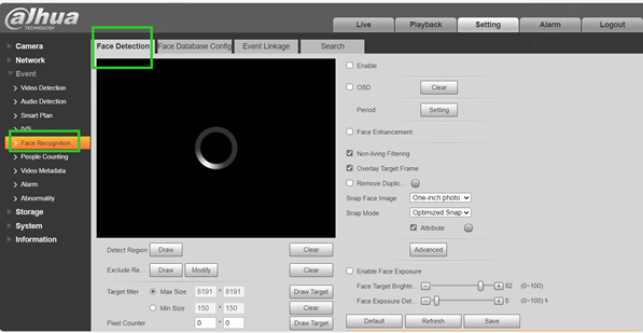
1.Click Face Detection to set parameters.

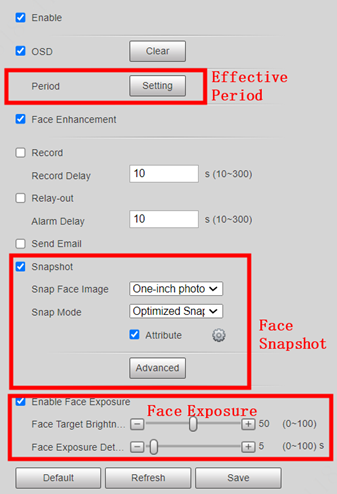
ClickĀ Ā icon, you can draw a detect region or an exclude region, and the target filter, Pixel Counter can be set as well.

Here you can set the effective period, record and alarm delay time, face snapshot, and face exposure according to the requirements.
1.Click Save to apply the rule.Ā Or use Default to clear Face Detection settings.
.
How to Set Face Detection Function (WEB 5.0)
1.Product Model and Firmware Version
Any model and firmware with Face Detection supported.
(This tutorial is based on WEB 5.0 firmware)
Interface may vary on some models and firmware.
1.Operation Description
2.Enable Face Detection in Homepage > AI > Smart Plan

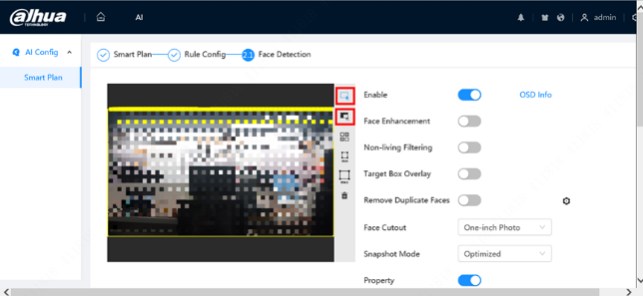
1.ClickĀ Ā orĀ Ā icon to draw Detection Area or Exclusive Area


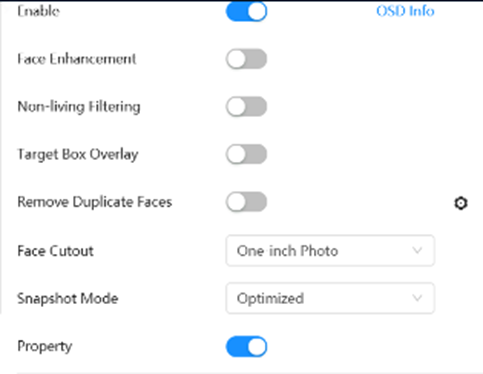
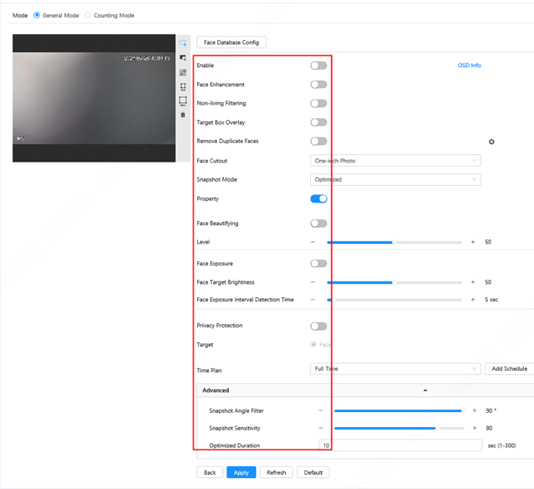
ā¢Ā Face enhancement:Ā It can preferably guarantee clear face with low stream.
ā¢Ā Non-living filtering:Ā Filter non-living faces in the image, such as a face picture.
ā¢Ā Target Box Overlay:Ā You can add a bounding box to the face in the captured picture to highlight the face.
ā¢Ā Remove Duplicate Faces:Ā During the configured period, the duplicate faces are displayed only once to avoid repeated counting.
ā¢Ā Face Cutout:Ā Set a range for matting face image, including face, one-inch photo and custom.
ā¢Ā Snapshot Mode:Ā It can be divided into three modes: Real- time, Optimized, Quality Priority.
n.Real-time:Ā Capture the picture immediately after the camera detects face.
o.Optimized:Ā Capture the clearest picture within the configured time after the camera detects face.
p.Quality Priority:Ā Repeatedly compare the captured face to the faces in the armed face database, and capture the most similar face image and send the event. We recommend you use this mode in access control scene.
ā¢Ā Property:Ā Detect the attribution of the face.

ā¢Ā Face Beautifying:Ā It can make face details clearer at night. After enabling this function, you can adjust the level.

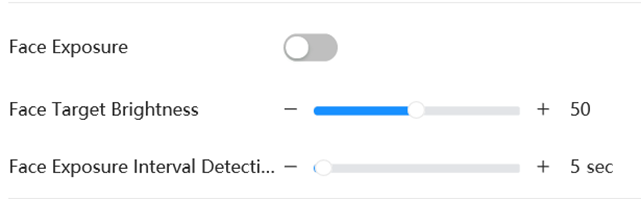
ā¢Ā Face Exposure:Ā When a face is detected, the camera can enhance brightness of the face to make the face image clear.
ā¢Ā Face Target Brightness:Ā Set the face target brightness. It is 50 by default.
ā¢Ā Face Exposure Detection Interval:Ā Set the face exposure detection interval to prevent image flickering caused by constant adjustment of face exposure. It is 5 seconds by default.
ā¢Ā Privacy Protection:Ā The faces will be blurred by mosaic when they are detected.

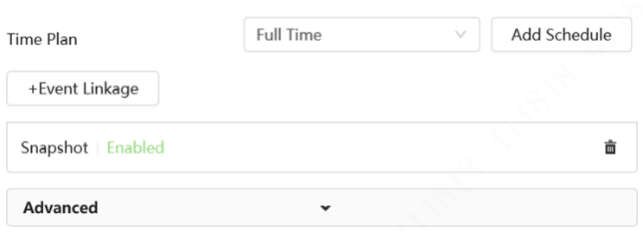
Event Linkage: You can select what operation will be done when event triggered.
1.Click Apply to save the settings. Or use Default to clear Face Detection settings.
How to Set Face Recognition (WEB 3.0)
1.Product Model and Firmware Version
Any model and firmware with Face Recognition supported.
(This tutorial is based on WEB 3.0 firmware)
Interface may vary on some models and firmware.
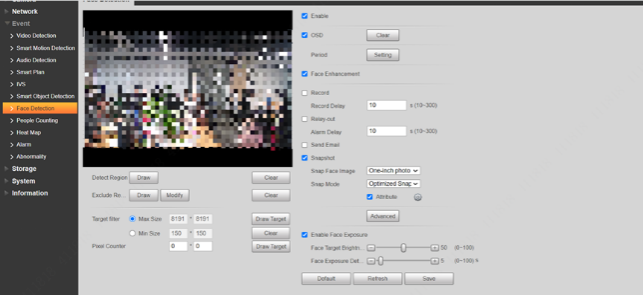
1.Operation Description
Face Recognition:
When a face is detected in the area, the system compares the captured face image with the information in the face database, and links alarm according to the comparison result.
1.Login Device.

1.Select Setting > Event > Smart Plan > Face Recognition

1.Select Setting > Face Recognition > Face Detection

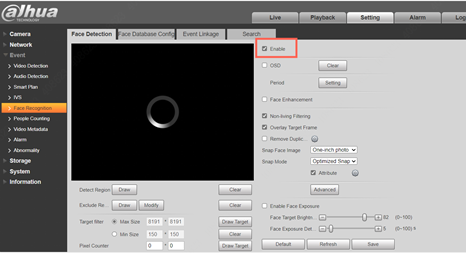
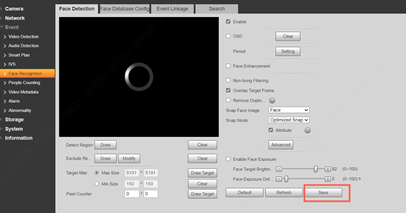
1.Select the Enable check box to enable the face detection function
| Parameter |
Description |
| OSD Info |
ClickĀ OSD InfoĀ , and the Overlay page is displayed, and then enable the face statistics function. The number of detected faces is displayed on the Live page. |
| Face Enhancement |
Click to enable face enhancement, and it can preferably guarantee clear face with low stream. |
| Non-living Filtering |
Filter non-living faces in the image, such as a face picture |
| Snap Face Image |
Set a range for snapping face image, including face picture, one-inch picture, and custom. |
| Snapshot Mode |
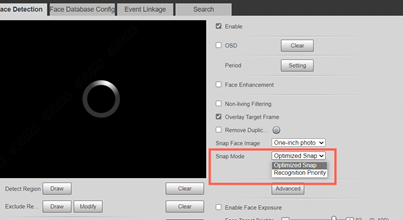
Optimized Snapshot :Ā Capture the clearest picture within the configured time after the camera detects face.
Recognition Priority :Ā Repeatedly compare the captured face to the faces in the armed face database, and capture the most similar face image and send the event. We recommend you use this mode in access control scene

|
| Attribute |
Select the Attribute check box, and click to set the display of face attribute during the face detection. |
| Face Beautifying |
Enable Face Beautifying to make face details clearer at night. After enabling this function, you can adjust the level. The higher the level, the higher the beautifying level. |
| Face Exposure |
Select the Enable Face Exposure check box. When a face is detected, the camera can enhance brightness of the face to make the face image clear. |
| Face Target Brightness |
Set the face target brightness. It is 50 by default |
| Face Exposure Detection Interval |
Set the face exposure detection interval to prevent image flickering caused by constant adjustment of face exposure. It is 5 seconds by default. |
| Advanced |
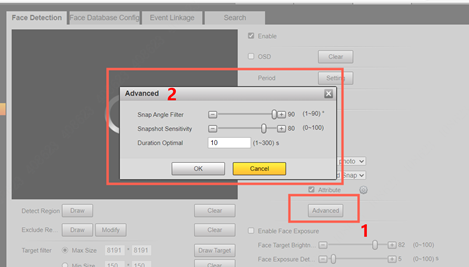
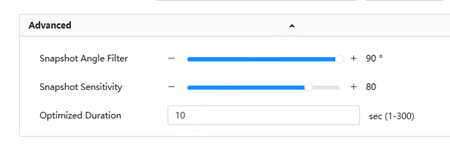
Snapshot Angle FilterĀ : Set snapshot angle to be filtered during the face detection.
Snapshot Sensitivity :Ā Set snapshot sensitivity during the face detection. It is easier to detect face with higher sensitivity.Optimized Time :Ā Set a period to capture the clearest picture after the camera detects face.

|
| Pixel Counter |
Click Draw Target next to Pixel Counter, and then press and hold the left mouse button to draw a rectangle, the Pixel Counter then displays its pixel. |
By setting face database, the face database information can be used to compare with the face detected.
ā¢Ā SelectĀ Setting > Event > Face Recognition > Face Database Config.

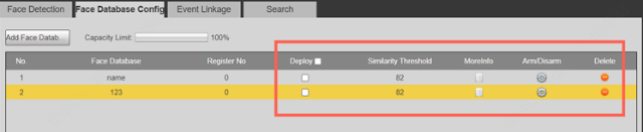
ā¢Ā ClickĀ Add Face Database.Ā Set the name of the face database. Then Click OK.

ā¢Ā Deploy
Select the Deploy check box, and the face database deployment is enabled. The captured face picture is compared to the armed face database.
ā¢Ā Similarity Threshold
The detected face matches the face database only when the similarity between the detected face and the face feature in face database reaches the configured similarity threshold.
ā¢Ā MoreInfo
Click MoreInfo to manage face database. You can search face images by setting search conditions, register personnel, and modify personnel information.
ā¢Ā Arm/Disarm
Set the alarm time period. Alarm event will be triggered only within the defined time.
ā¢Ā Delete
Delete the selected face database.
1.Adding Face Picture

ā¢Ā Select Setting > Event > Face Recognition > Face Database Config.
ā¢Ā ClickĀ Ā next to the face database to be set
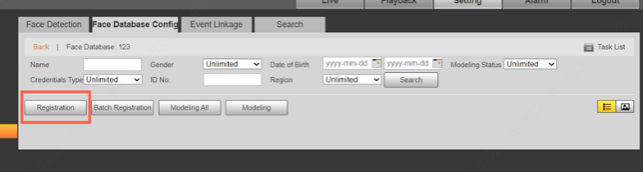
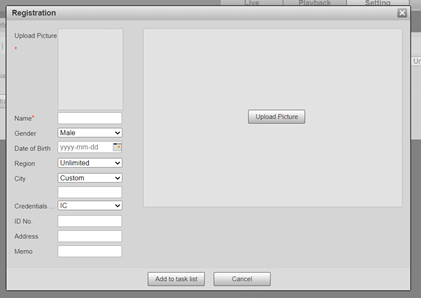
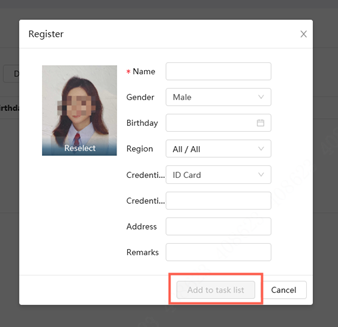
ā¢Ā Click Registration


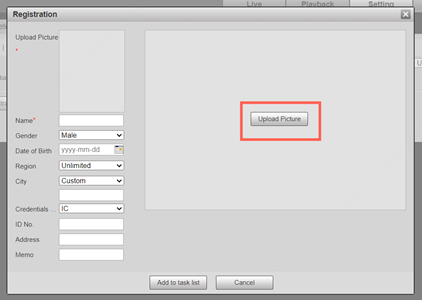
ā¢Ā ClickĀ Upload Picture, select a face picture to be uploaded, and then clickĀ Open.
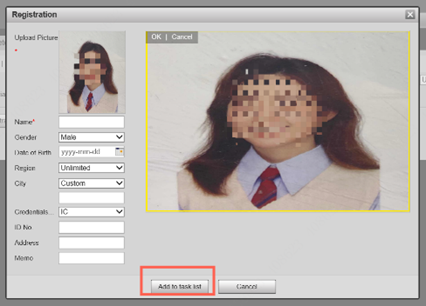
ā¢Ā ClickĀ Add to task list
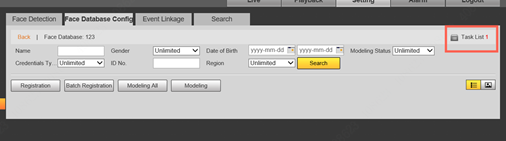
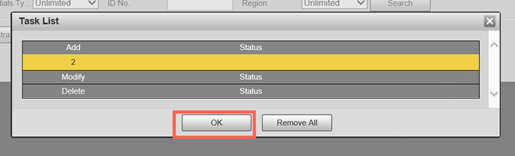
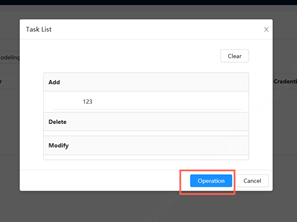
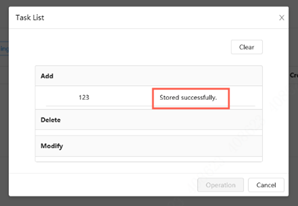
ā¢Ā ClickĀ Task List, and then clickĀ OK


1.Batch Importing (optional)
ā¢Ā SelectĀ Setting > Event > Face Recognition > Face Database Config.

ā¢Ā Click next to the face database to be set


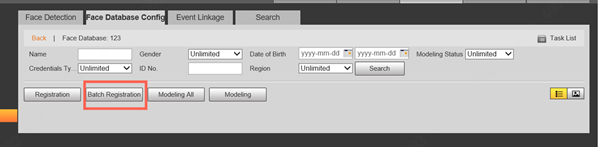
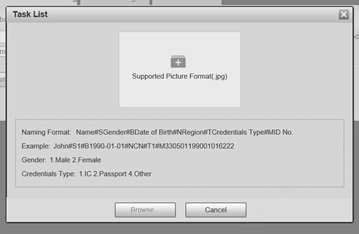
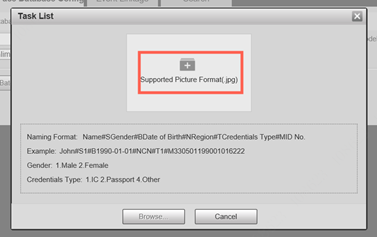
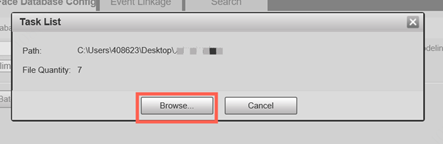
ā¢Ā ClickĀ Batch Registration
ā¢Ā Click to select file path
1.Face Modeling
ā¢Ā When the modeling status isĀ ValidĀ in the list or is displayed on the left corner of the thumbnail, it means the modeling succeeded.
ā¢Ā When the modeling status isĀ InvalidĀ in the list or is not displayed on the left corner of the thumbnail, it means the modeling failed. Point to the modeling status in the list or the pictures without to view the details of the failure.
Change the pictures according to the details.
How to Set Face Recognition (WEB 5.0)
1.Product Model and Firmware Version
Any model and firmware with Face Recognition supported.
(This tutorial is based on WEB 5.0 firmware)
Interface may vary on some models and firmware.
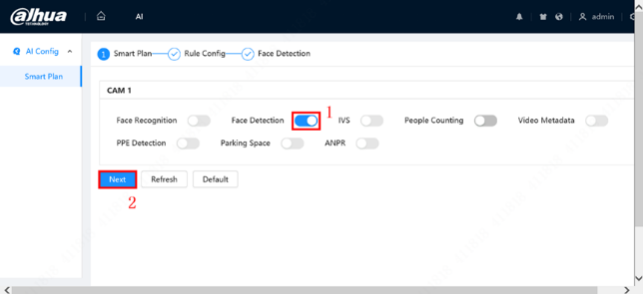
1.Operation Description
Face Recognition:
When a face is detected in the area, the system compares the captured face image with the information in the face database, and links alarm according to the comparison result.
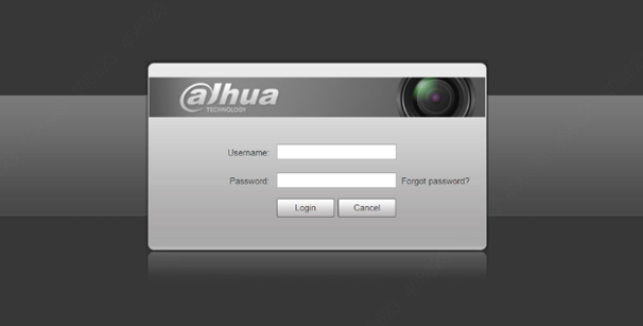
1.Login Device.

1.Enabling Face Recognition
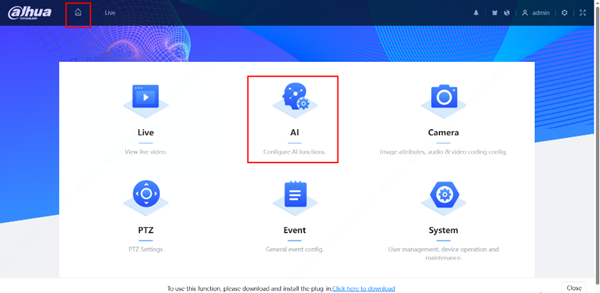
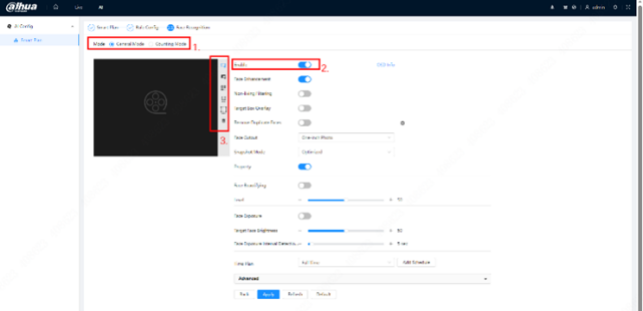
1.SelectĀ AIĀ inĀ Homepage

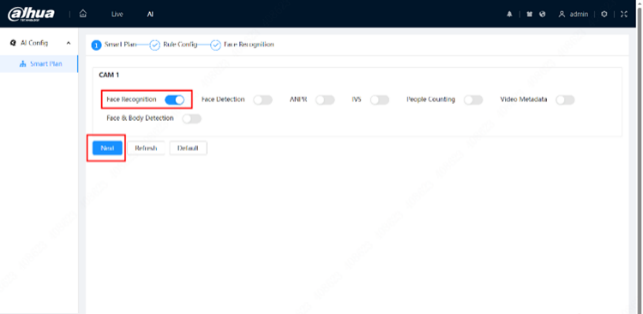
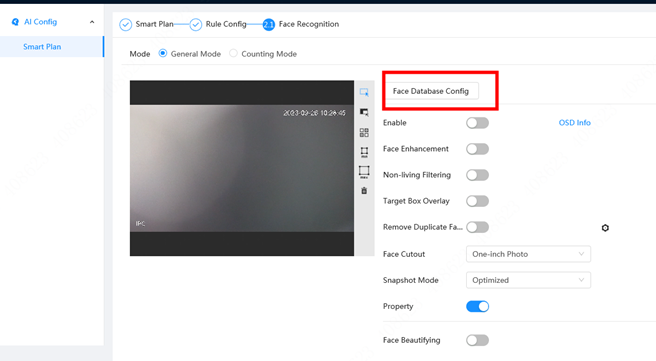
1.Click next toĀ Face RecognitionĀ to enable face recognition of the corresponding channel, and then clickĀ Next.
2.Select the detection mode.
1.Ā Ā Ā Ā Ā Ā Ā Ā General Mode :Ā When a face is detected in the detection area, the system performs alarm linkage, such as recording and sending emails.
2.Ā Counting Mode :Ā You can do precise face counting with two default function databases (all people database and exclude people database).

1.Click next toĀ EnableĀ to enable the face detection function.

Click other icons at the right side of the image to draw detection area, exclusion area, and filter targets in the image.
| Image |
Description |
 |
draw a face detection area in the image, and right-click to finish the drawing |
 |
draw an exclusion area for face detection in the image, and right-click to finish the drawing. |
 |
draw the minimum size of the target. |
 |
draw the maximum size of the target. Only when the target size is between the maximum size and the minimum size, can the alarm be triggered. |
 |
press and hold the left mouse button to draw a rectangle, the pixel size is displayed. |
 |
delete the detection line. |

| Parameter |
Description |
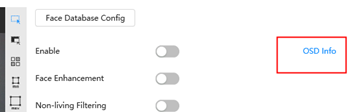
| OSD Info |
ClickĀ OSD InfoĀ , and the Overlay page is displayed, and then enable the face statistics function. The number of detected faces is displayed on the Live page. |
| Face Enhancement |
Click to enable face enhancement, and it can preferably guarantee clear face with low stream. |
| Non-living Filtering |
Filter non-living faces in the image, such as a face picture |
| Target Box Overlay |
ClickĀ to enable the function, and then you can add a bounding box to the face in the captured picture to highlight the face. The captured face picture is saved in SD card or configured storage path. |
| Remove Duplicate Faces |
During the configured period, the duplicate faces are displayed only once to avoid repeated counting. |
| Face Cutout |
Set a range for the captured face image, including face, one-inch picture, and custom. |
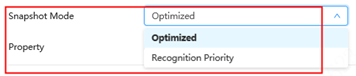
| Snapshot Mode |
General mode:
Optimized Snapshot :Ā Capture the clearest picture within the configured time after the camera detects face.
Recognition Priority :Ā Repeatedly compare the captured face to the faces in the armed face database, and capture the most similar face image and send the event. We recommend you use this mode in access control scene |
| Property |
ClickĀ Ā next to Property to enable the properties display |
| Face Beautifying |
Enable Face Beautifying to make face details clearer at night. After enabling this function, you can adjust the level. The higher the level, the higher the beautifying level. |
| Face Exposure |
Enable Face Exposure. When a face is detected, the camera can enhance brightness of the face to make the face image clear. |
| Face Target Brightness |
Set the face target brightness. It is 50 by default |
| Face Exposure Detection Interval |
Set the face exposure detection interval to prevent image flickering caused by constant adjustment of face exposure. It is 5 seconds by default. |
| Privacy Protection |
Enable this function, and the faces will be blurred by mosaic when they are detected. |
| Advanced |
Snapshot Angle FilterĀ : Set snapshot angle to be filtered during the face detection.
Snapshot Sensitivity :Ā Set snapshot sensitivity during the face detection. It is easier to detect face with higher sensitivity.Optimized Time :Ā Set a period to capture the clearest picture after the camera detects face.

|
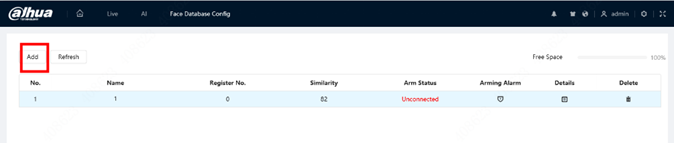
1.Click Face Database Config on the Face Recognition page
By setting face database, the face database information can be used to compare with the face detected.
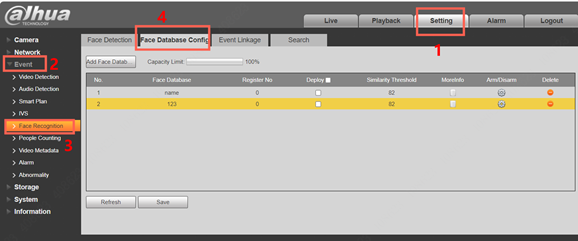
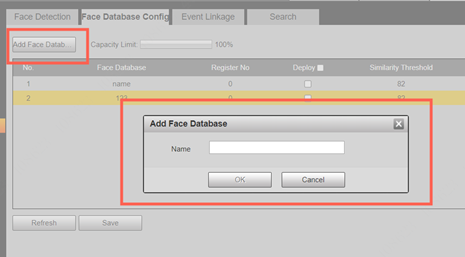
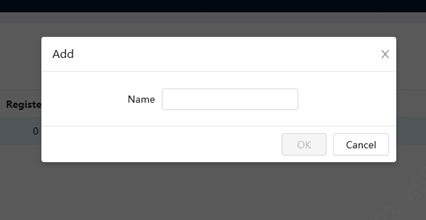
1.Click Add Face Database

1.Set the name of the face database.

2.Edit the name of the face database
Click the text box under Name to edit the name of the face database.

1.Arm alarm
Click to configure the parameters of arm alarm.

1.Manage face database
Clickto manage the face database. You can search face, register, batch register, modeling all, modeling, and delete faces

1.Delete face database
Click to delete the face database.

Add face picture to the created face database. Single adding and batch importing are supported. Requirements on face pictures.
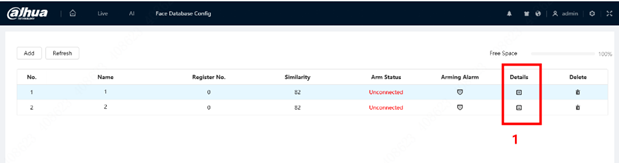
ā¢Ā A single face picture size is 50Kā150K in JPEG format.
ā¢Ā The resolution is less than 1080p.
ā¢Ā Face size is 30%ā60% of the whole picture. Pixel should be no less than 100 pixels between the ears.
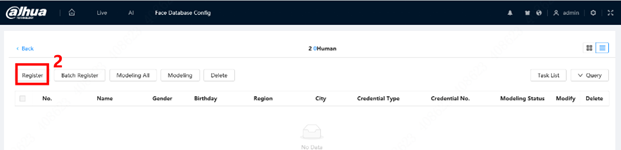
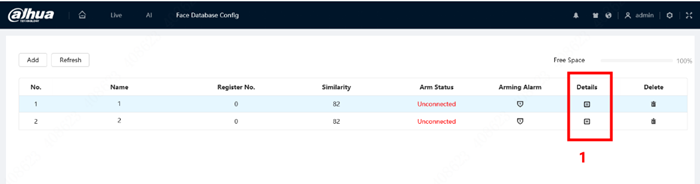
1.Face Database Config Ā > DetailsĀ Ā >Register


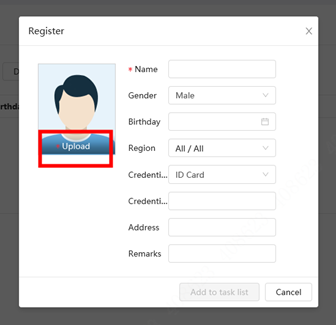
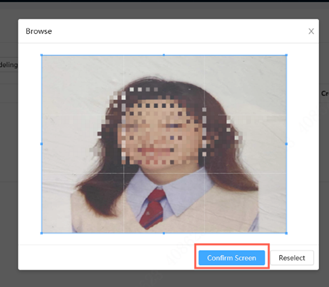
1.Click Upload , select a face picture to be uploaded, and then click Open
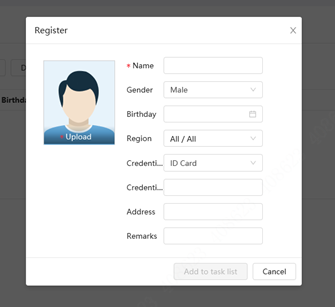
1.Enter the information about face picture according to the actual situation
1.Click

, and then click Operation


1.Batch Importing (optional)
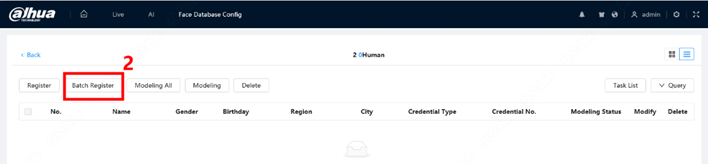
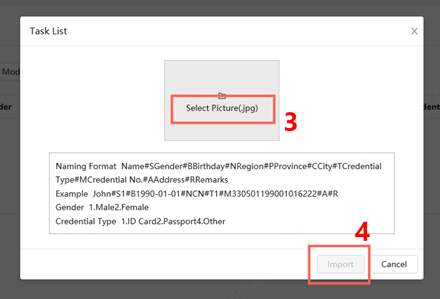
ā¢Ā Before importing pictures in batches, name the face pictures in a format of prompted way.
Face Database Config Ā > details > Batch Register > Click Select Picture, and select storage path of the file > Click Import to import the face pictures
1.Face Modeling
When the modeling status isĀ ValidĀ in the list or is displayed at the lower-left corner of the thumbnail, it means the modeling succeeded
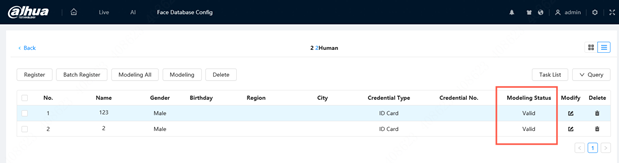
1.When the modeling status isĀ InvalidĀ in the list or is displayed at the lower-left corner of the thumbnail, it means the modeling failed. Point to the modeling status in the list to view the details of the failure. Change the pictures according to the details.
.
Add Comment