Akuvox My MobileKey User Guide, The Akuvox My Mobile Key allows you to open doors hands-free through Bluetooth or by taping unlock...
Akuvox My MobileKey User Guide, The Akuvox My Mobile Key allows you to open doors hands-free through Bluetooth or by taping unlock icon on the app. The App can be paired up with selected Akuvox A03 control units and more through authentication, and communicate with the control units for the Bluetooth-based hands-free door opening. You can either wave your hand in front of the control units or simply tap the unlock icon on the app to open the door.
About This Manual
Thank you for using My MobileKey app. This manual shows you how to use the Akuvox My Mobile Key for hands-free door opening. The manual is written based on My MobileKey version: 1.0.6.
About My Mobile Key
The Akuvox My Mobile Key allows you to open doors hands-free through Bluetooth or by taping unlock icon on the app. The App can be paired up with selected Akuvox A03 control units and more through authentication, and communicate with the control units for the Bluetooth-based hands-free door opening. You can either wave your hand in front of the control units or simply tap the unlock icon on the app to open the door.
Getting Started
Before your start, you will need to have the following items:
• A Bluetooth-featured smartphone (Android OS 7. or higher; iOS 11.0 or higher).
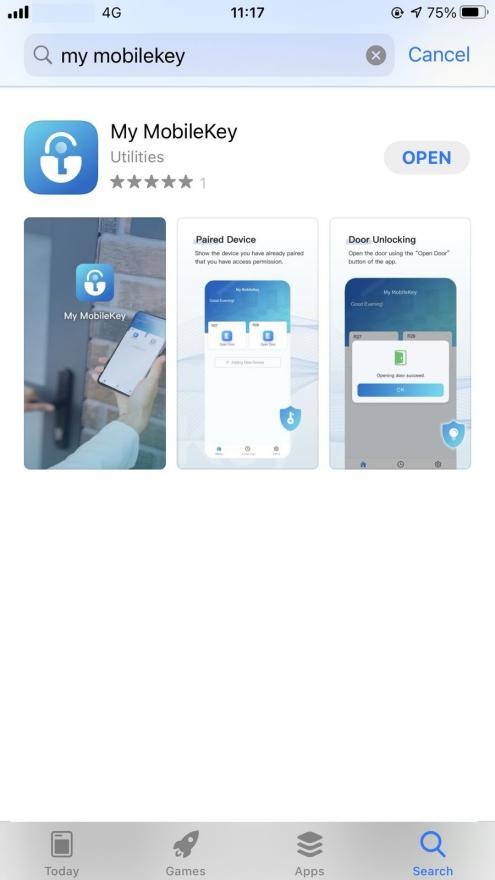
• A My Mobile Key app, which you can download and install on Google Play Store or App Store (see the picture below).
Getting Your Initial Configuration Ready
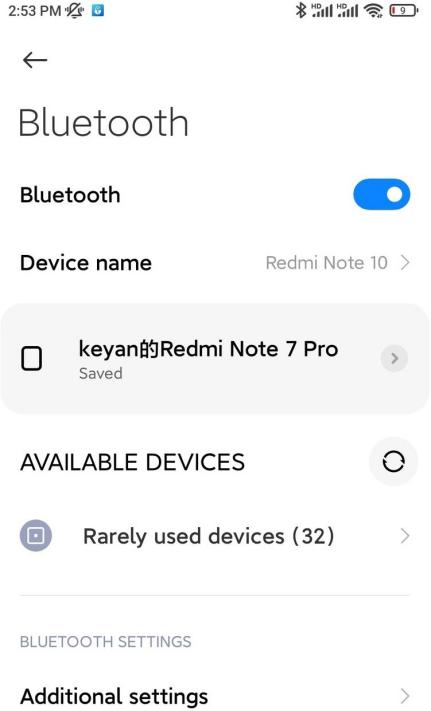
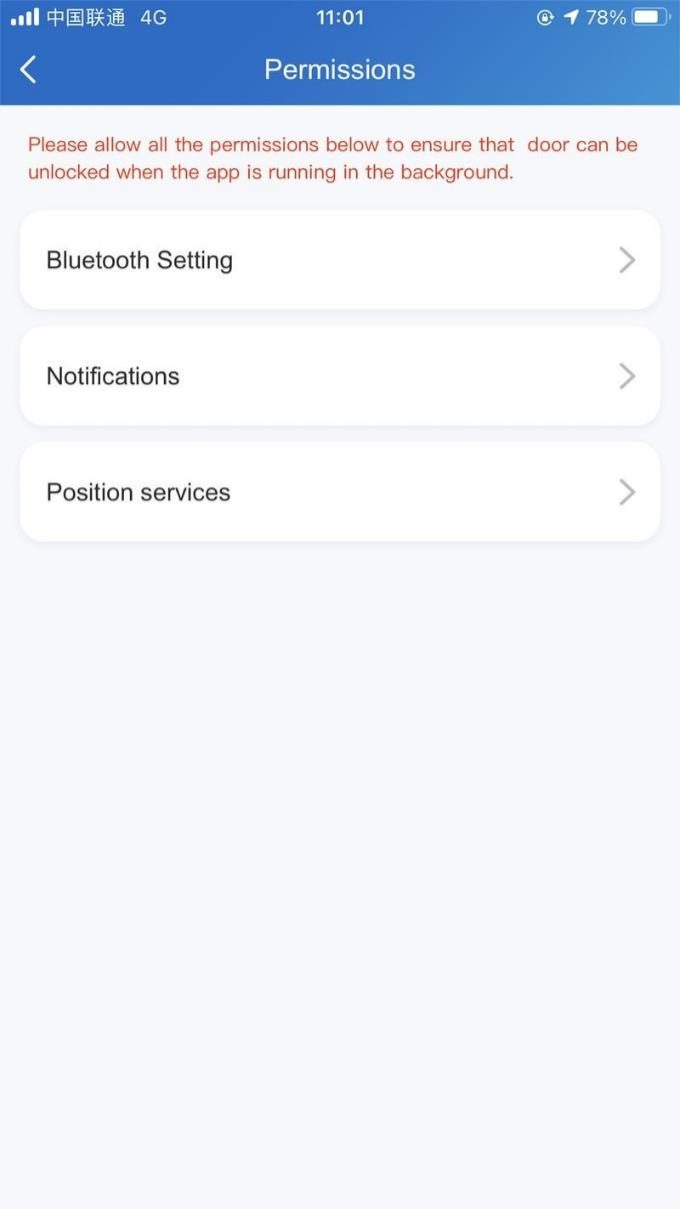
After you download the app, you need to enable the smartphone’s Bluetooth feature for pairing up the app with the control unit, and set up your permissions to allow the app to run in the background for the door opening, etc.
To enable Bluetooth:
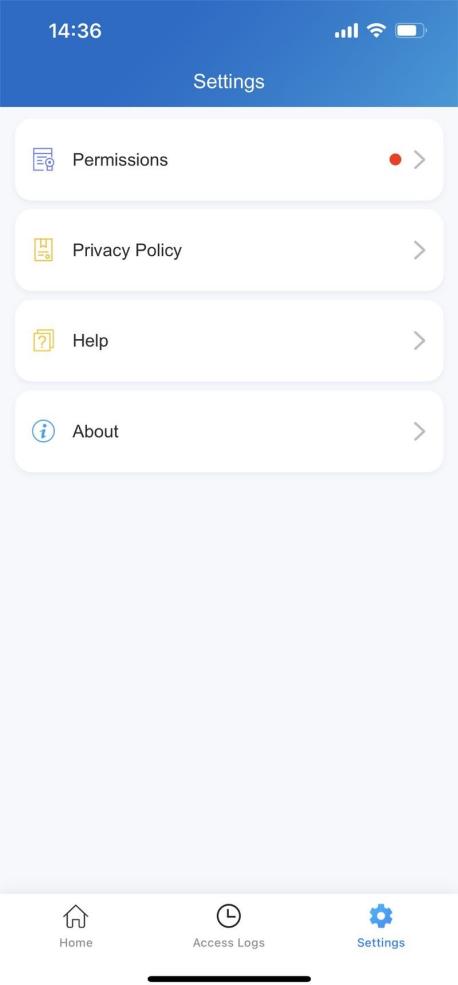
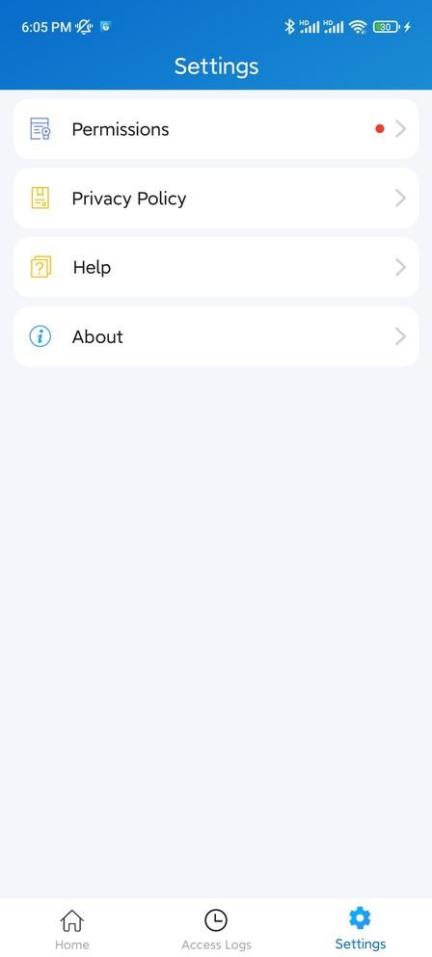
1.In the bottom taskbar, tap Setting.
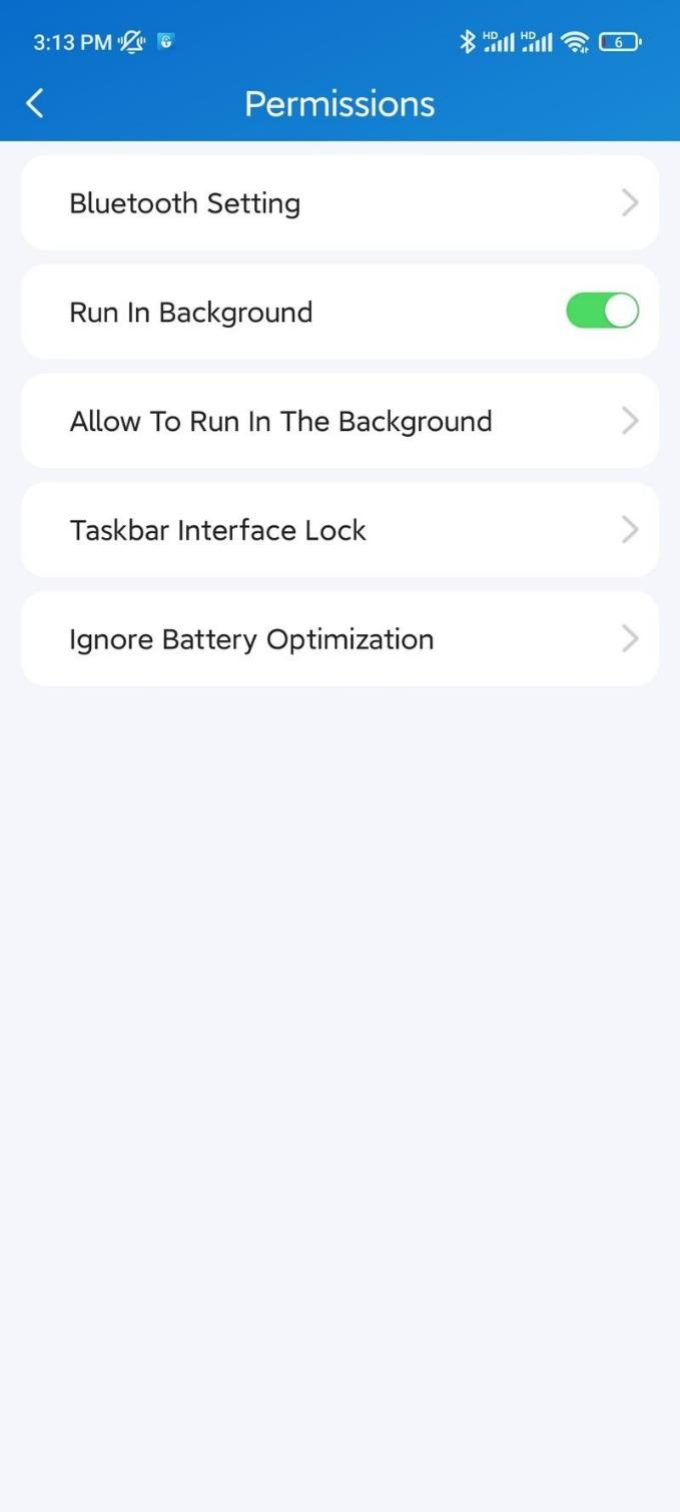
2.Tap Permissions > Bluetooth Setting to enable the Bluetooth feature on your smartphone.
To enable and set up the Run in Background feature:
1.Enable Run in Background.
2.Allow the app to run in the background.
• For Android:
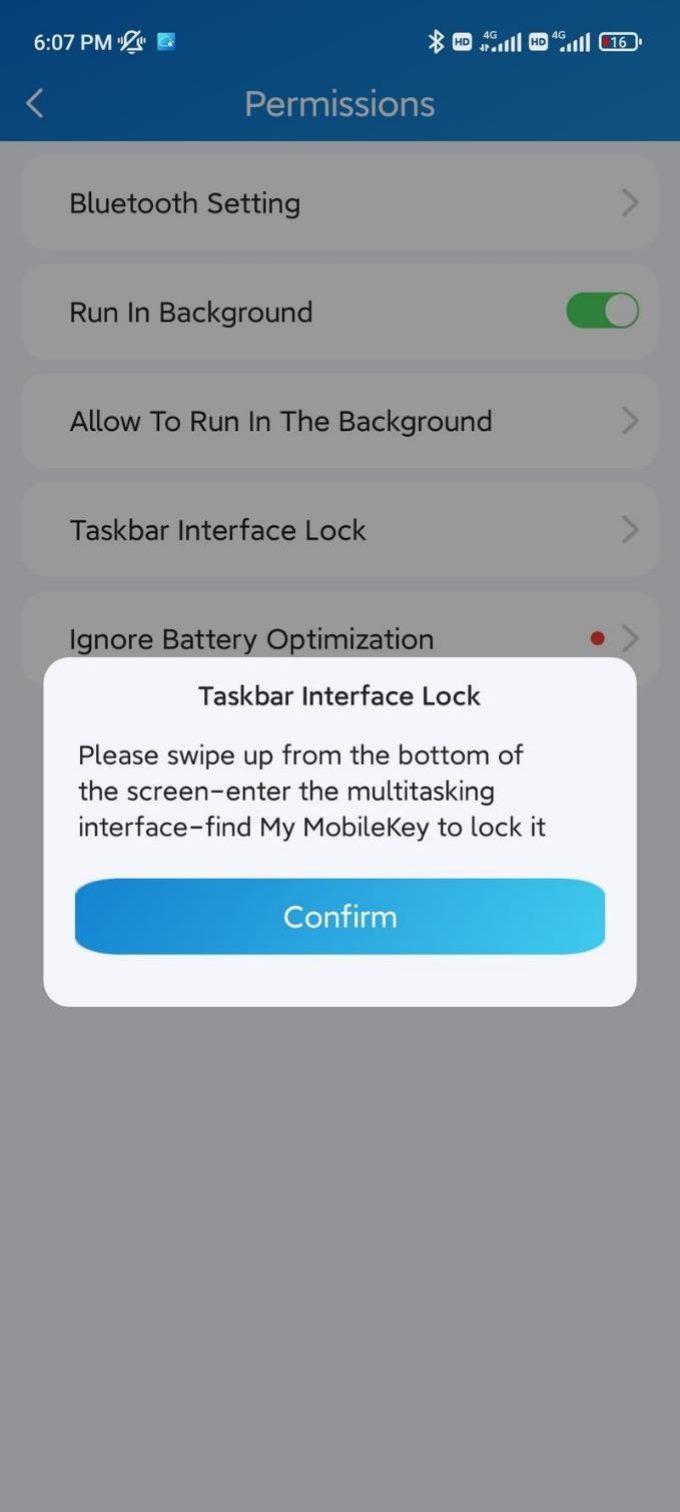
◦ enable the Auto Run in The Background, then enable Taskbar Interface lock if you want the app to stay running in the background without being suspended by the smartphone’s operating system.
◦ select Non restrictions so that the app will not be suspended by the battery saver.
• For iOS:
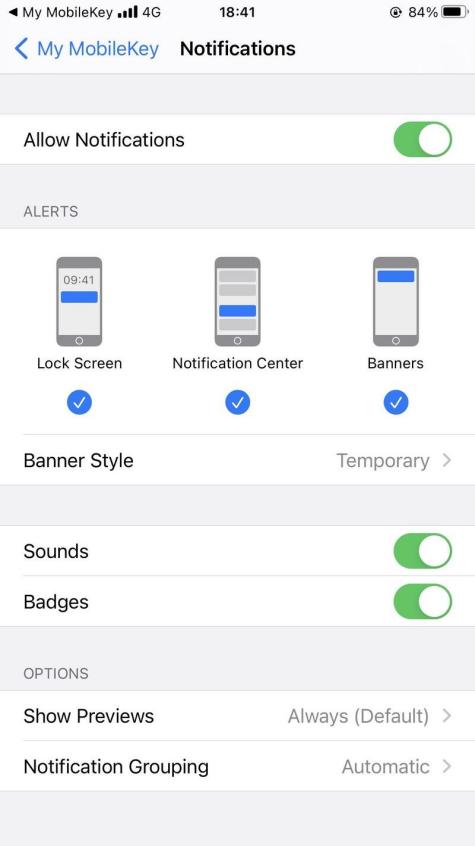
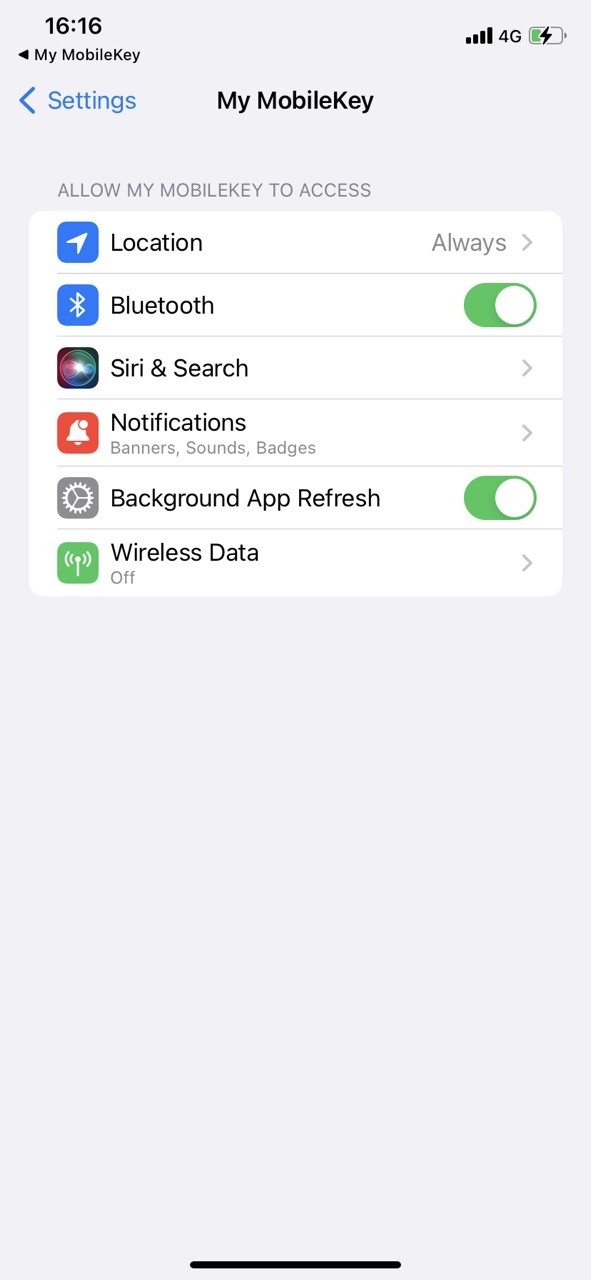
◦ Tap Notifications, and enable the notification on your smartphone. When it is enabled, the app will stay running in the background, and you will receive an app keep-alive notification.
◦ Tap Position Services, and select Always, and you will receive an offline push notification when the app is suspended.
Pairing Your App with Access Control Unit
To pair My MobileKey with the control unit via Bluetooth, you need to scan and pair up your app with the device near you using the authentication code. After that, you will be ready for the Bluetooth-based door-opening experience.
To pair the app with the control unit:
Note
• You can receive your authentication code from your administrator via mobile phone text message.
Note
• Before pairing, make sure your smartphone is within the range of the Bluetooth signal emitted by the control unit. Favorably 0-5 meters.
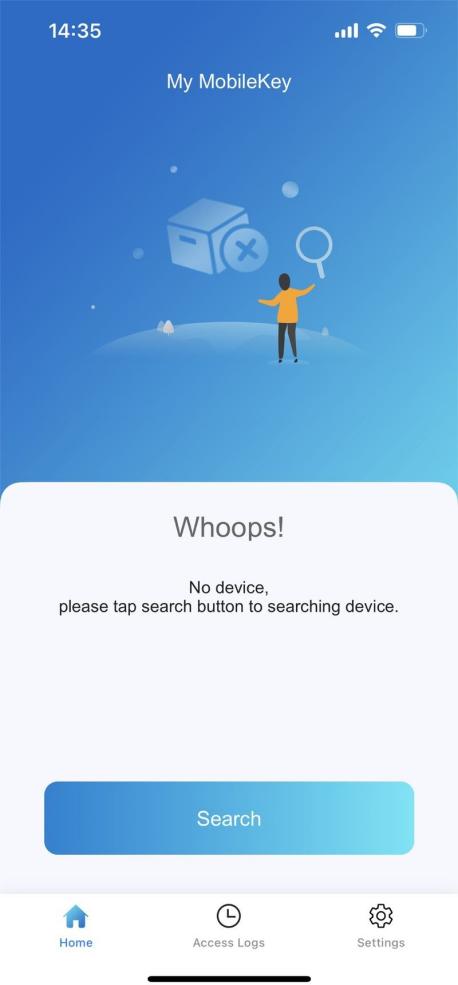
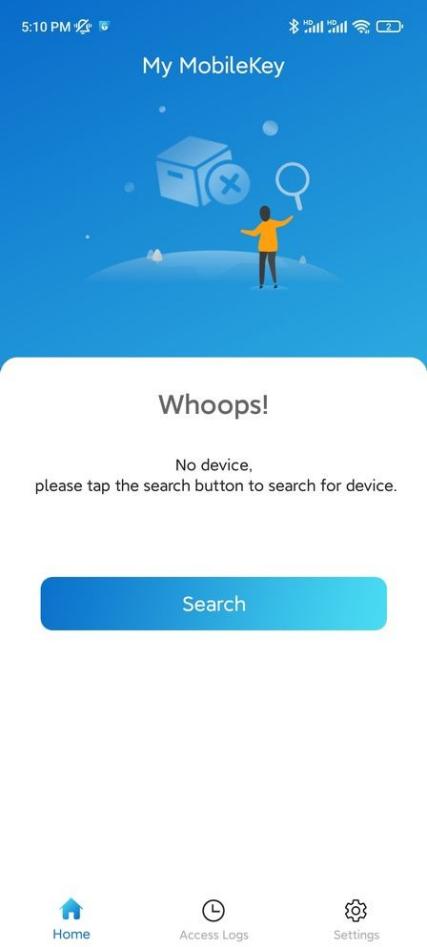
1.In the bottom taskbar, Tap Home.
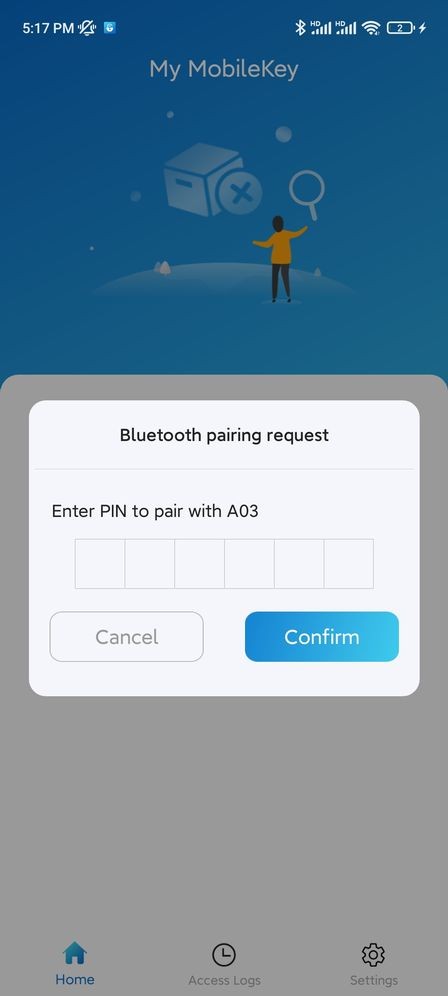
2.Tap Search to search the control unit nearby. A pop-up window for entering the authentication code will be displayed.
3.Enter the authentication code obtained from your administrator. The device model number will appear on the screen if you pass the authentication.
4.If you want to add more control units, tap + Adding New Device, then repeat the above pairing process.
Opening Door With My MobileKey
After the pairing up, you can open the door hands-free.
To open the door:
• Tap Open Door or wave your hands near the control unit to open the door. A pop-up prompt will be displayed for the door opening success.
Note
• Make sure your smartphone is within the range of the Bluetooth signal emitted by the control unit for the pairing, favorably 0-5 meters.
• Keep a distance of 0.05m to 0.15m between you and the control unit when you open the door by waving your hand.
.
Checking Your Access Log
You can check your access history on your smartphone. You can get to know when and on
which control unit the access attempts are made (both for success and failure).
To check your access history:
• At the bottom taskbar, tap Access Logs. The access history will be displayed.
Updating Your App
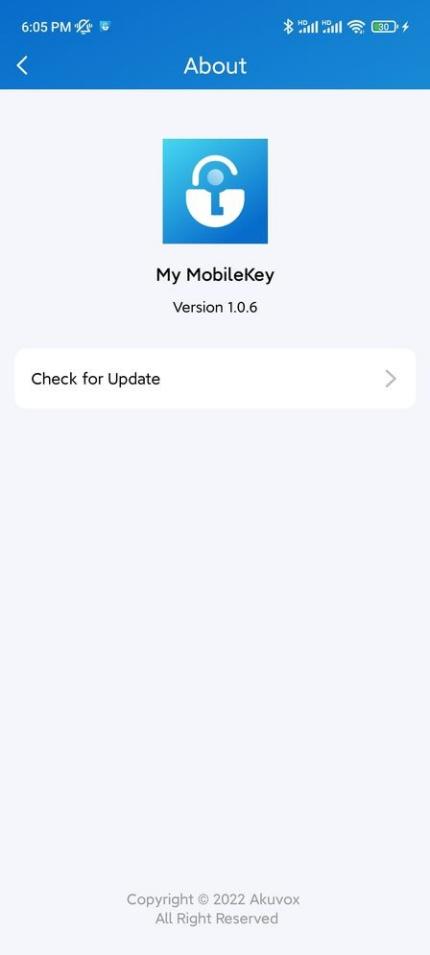
You can check your app version and update it if needed.
To check and update your app:
1.On the bottom taskbar, tap.
2.Tap About, then tap Check for Update. it will turn to App Store or Google Play automatically, then you can check whether it is the latest one.
Getting Help
If you need help, go to Setting> Help to watch the video tutorials.
Privacy Policy
To learn the terms and conditions for using Akuvox My MobileKey, and the privacy policies related to data collecting, go to Setting > Private Policy.
.
Akuvox ACRM Tool Configuration Guide
This manual guides you in using the software ACRM, the configuration tool of Akuvox desktop card reader ACR-CID01, and the physical access card Bkey. It is based on the software version V1.0.0.6.
Product Overview
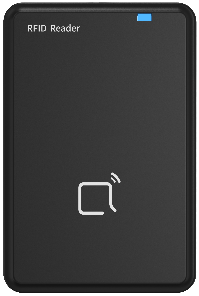
The ACR-CID01 is an efficient and multifunctional desktop card reader and encoder, designed specifically for modern access control systems. It supports connection to a computer via a USB to quickly read information on RFID/Bkey access cards.
Before You Start
Make sure:
• you have acquired and installed the latest version of the ACRM. Please contact the Akuvox tech support for obtaining the software.
• ACR-CID01 is connected to your computer through USB. During the startup process, the device will flash a blue light. After a successful initiation, the blue light will remain on.
Login
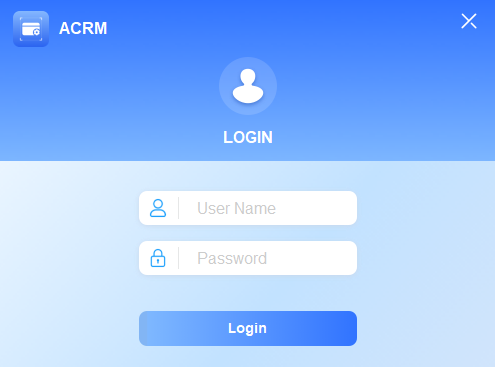
You can log in with either the Admin account or the Super Manager account.
• User Name and Password are both admin for Admin account.
• User Name and Password are both supermanage for Super Manager account.
The super manager has extra permission to upgrade the Akuvox Bkey.
Bkey Upgrade
To upgrade Bkey with the ACRM tool, please contact Akuvox tech support.
ACR-CID01 Setup Overview
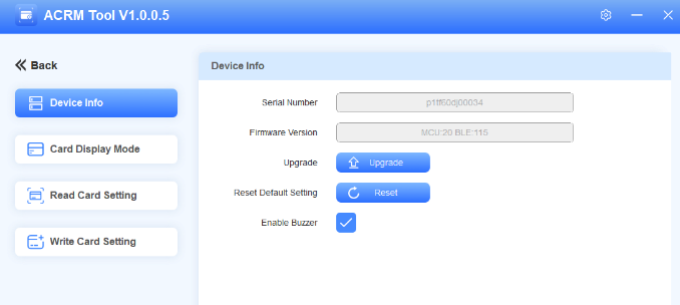
The ACR-CID01 setup interface consists of four modules.
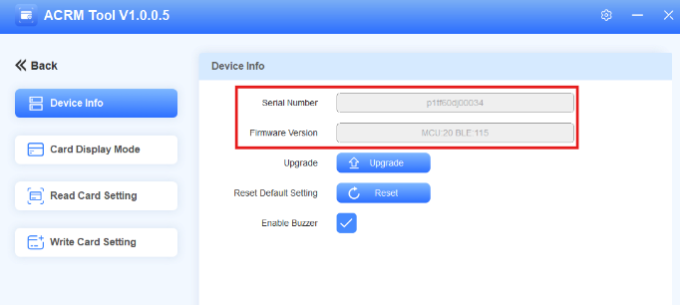
• Device Info: Display the device information. You can upgrade the device, reset it to the factory setting, and enable/disable the buzzer.
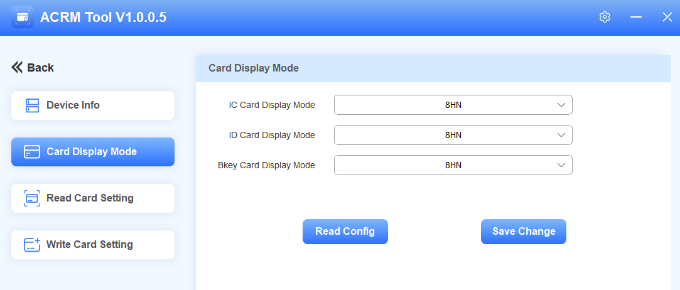
• Card Display Mode: Set the IC/ID/Bkey card display mode.
• Read Card Setting: Select a specific IC card type for reading.
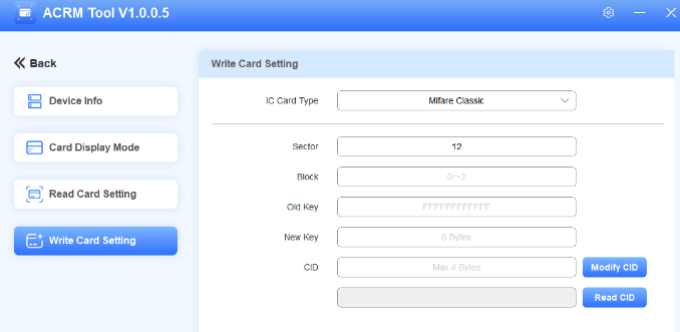
• Write Card Setting: Write data for Mifare Classic, Mifare Plus, or Desfire cards.
Basic Setup
Check the Device’s Information
You can see the device’s serial number and the firmware version on the Device Info interface.
Switch Language
You can change the tool language to English or Simplified Chinese.
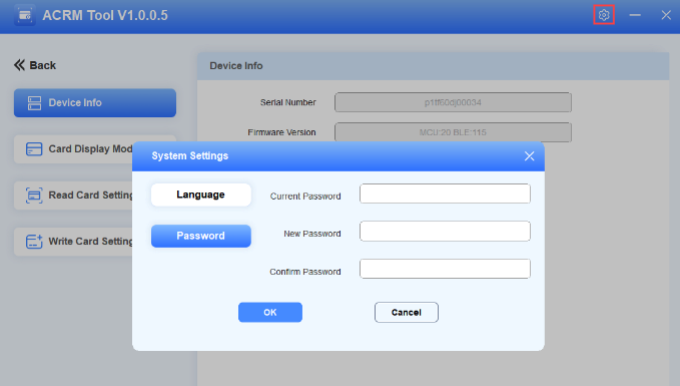
1.Click in the upper right corner.
2.Select the desired language and click OK.
3.After confirmation, click Cancel to close the System Settings window, and the tool language is changed.
Change Password
You can change the tool login password.
1.Click in the upper right corner and click Password.
2.Enter the current password and set the new password.
3.Click OK. “Modify Password Success” will pop up.
Upgrade the Device
You can upgrade the ACR-CID01 to the latest version.
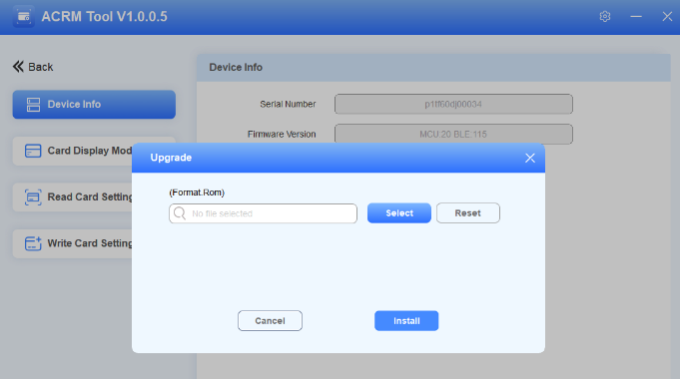
1.Click Upgrade on the Device Info interface.
2.Select the .rom file from your local driver. Please contact the Akuvox tech support for the upgrade file.
3.Click Install.
When the progress bar reaches 100%, the upgrade is finished. A pop-up will inform you whether the upgrade is successful.
Reset the Device to Factory Settings
You can reset the settings to factory default.
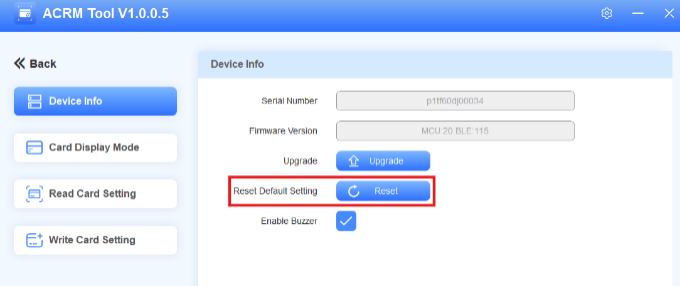
1.Click Reset on the Device Info interface.
2.Click OK to confirm. “Reset Default Setting Success!” will pop up. The login password, card reading, and writing setup will not be reset.
Set the Buzzer
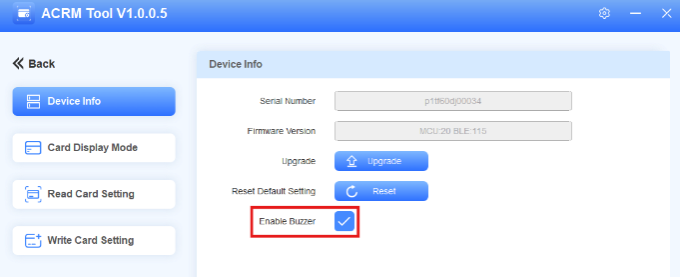
You can enable/disable the buzzer when swiping cards.
Enable or disable the buzzer on the Device Info interface. It is enabled by default.
Card Display Mode Selection
You can select the IC/ID/Bkey card display mode on the Card Display Mode interface. The default is 8HN.
Card Writing
Mifare Classic, Mifare Plus, and Desfire cards are encryption-featured cards.
• If the cards are new cards not configured, you need to write the card data before using them.
• If the cards are encrypted by the third-party service provider, please confirm the encryption information with the provider before using the ACR-CID01 to read the cards.
You can write cards on the Write Card Setting interface.
Mifare Classic
Concepts
• A Mifare card’s memory is divided into 16 sectors (from sectors 0 to 15) and each sector is divided into 4 blocks (from blocks 0 to 3).
• Sector/Block is where you write the encrypted card data.
• Every block stores 16 bytes. The first 6 bytes are Key A and the last 6 are Key B. They are used to protect each sector.
• Block Key A is where you write the authentication password(key).
Place the card on the ACR-CID01 while setting the card.
1.Set the IC Card Type to Mifare Classic.
2.Enter the sector number(0 to 15) that stores the encrypted card data.
3.Enter the block number(0 to 2).
4.Enter the old block key. If it is a new card, the key is “FFFFFFFFFFFF”(case insensitive) by default. If not, please confirm it with the service provider.
5.Enter the 6-byte new key.
6.Set the CID(the output card code) with a maximum of 4 bytes.
7.Click Modify CID. “Successfully write card” will pop up.
Tip
If writing the card fails, remove the card, put it back on the ACR-CID01 and try again.
You can click Read CID to check the card code.
Mifare Plus
Concepts
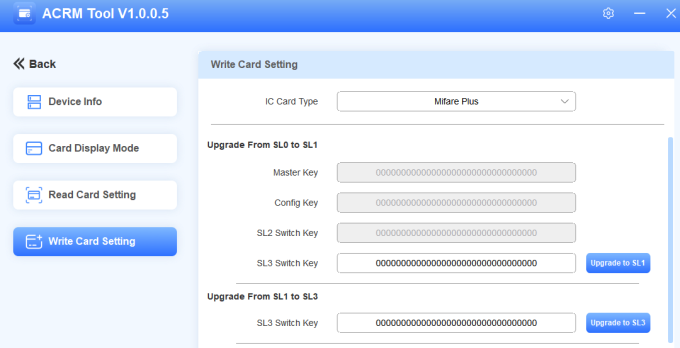
The Mifare Plus cards support one pre-personalized level and three security levels(SL), operating at a single security level at any given time and can only be switched to a higher level.
• SL0: Store the pre-configured keys for setup, including level switching keys and AES keys for memory access.
• SL1: Cards are fully compatible with MIFARE Classic 1K/4K cards, allowing them to work seamlessly within existing MIFARE Classic systems.
• SL2: Require AES authentication and use MIFARE Classic CRYPTO1 for data security.
• SL3: Require AES for authentication, ensure secure communication, and maintain data integrity.
Place the card on the ACR-CID01 while setting the card.
1.Set the IC Card Type to Mifare Plus. The Master Key, Config Key, and SL2 Switch Key cannot be changed.
2.Upgrade the card. If it is a new card, it must at least be upgraded to SL1 for usage.
• To upgrade the card from SL0 to SL1, customize the SL3 Switch Key with a maximum of 16 bytes. Then, click Upgrade to SL1.
• To upgrade the card from SL1 to SL3, enter the SL3 Switch Key you set. Then, click Upgrade to SL3.
The card cannot be upgraded from SL0 to SL3.
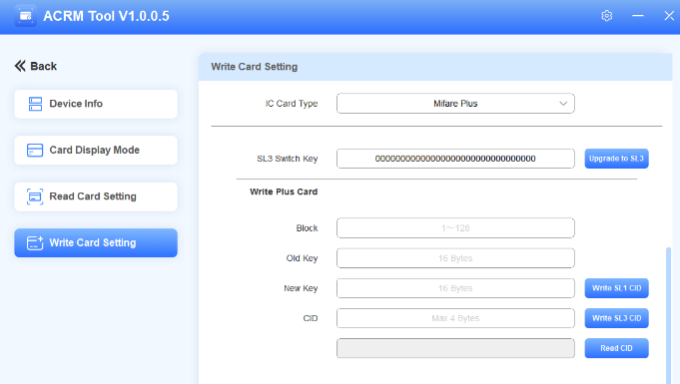
3.Enter the block number(1 to 128). Do not enter these numbers: “3, 7, 11, 15, 19, 23, 27, 31, 35, 39, 43, 47, 51, 55, 59, 63, 67, 71, 75, 79, 83, 87, 91, 95, 99, 103, 107, 111, 115, 119, 123, 127”.
Note
• A Mifare card’s memory is divided into multiple sectors and each sector is divided into 4 blocks (from blocks 0 to 3). Sector/Block is where you write the encrypted card data.
• Block 3(The fourth block) is used to store key. Therefore, avoid entering the number of the fourth block in each sector.
4.Enter the old key. It is 32-bit F(case insensitive) by default for new cards. If not, please confirm it with the service provider.
5.Customize the new 16-byte key and click Write Card.
• Write SL1 CID: Write the key into the SL1 card.
• Write SL3 CID: Write the key into the SL3 card.
Tip
If writing the card fails, remove the card, put it back on the ACR-CID01 and try again.
You can click Read CID to check the card code.
Desfire
Concepts
• DES(Data Encryption Standard) Fire cards support advanced encryption algorithms, including AES, providing a high level of security for data transactions.
• Each card has applications, and each application can store files and 14 keys. These are essential parts for reading the Desfire cards.
Place the card on the ACR-CID01 while setting the card.
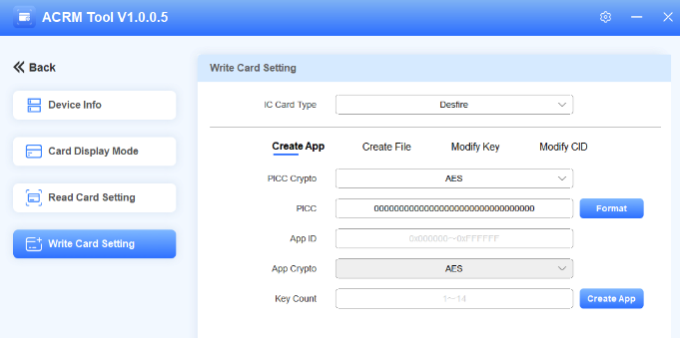
Create App
1.Set the IC Card Type to Desfire. Select the PICC Crypto type from AES and DES. For Akuvox Desfire cards, it is DES. If it is a third-party card, please confirm it with the service provider.
2.If you need to format the card, enter the PICC and click Format. The default is 32-bit 0 for Akuvox Desfire cards.
3.Customize the App ID from 1 to 16,777,215. It is suggested to enter 6-digit hexadecimal if you want to use the device with Akuvox door phones or access control terminals.
4.Set the key count with 14 at most. The key count decides the key ID. For example, if you enter 4, then you can set 4 keys with key ID 0, 1, 2, and 3.
5.Click Create App. “Successfully Create App” will pop up.
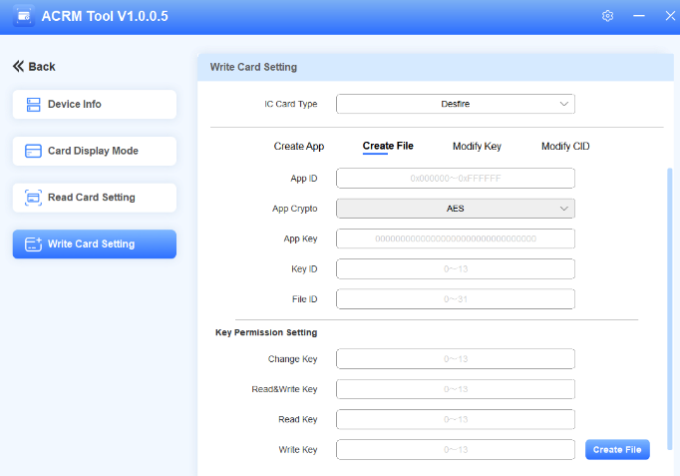
Create File
1.Enter the App ID you set on the Create App interface.
2.Enter the App Key.
• If it is an Akuvox Desfire card, it is 32-bit 0 by default.
• If it is a third-party card, please confirm it with the service provider.
3.Enter the Key ID based on the key count you selected on the Create App interface. For example, if the key count is 1, then the Key ID is 0. If it is 2, the Key ID for the first key is 0, the second key is 1.
4.Customize the File ID from 0 to 31.
5.Set key permissions. You can grant permissions to specific keys.
Enter the corresponding key ID when you need to read and/or write the card CID. Please note that the Change Key function is currently unavailable.
If the key count is 1, you can set all the values to 0.
6.Click Create File. “Successfully Created File” will pop up.
After creating the App and File, the encryption of the card is done. If you want to change the App Key and card code, further navigate to the Modify Key and Modify CID sections.
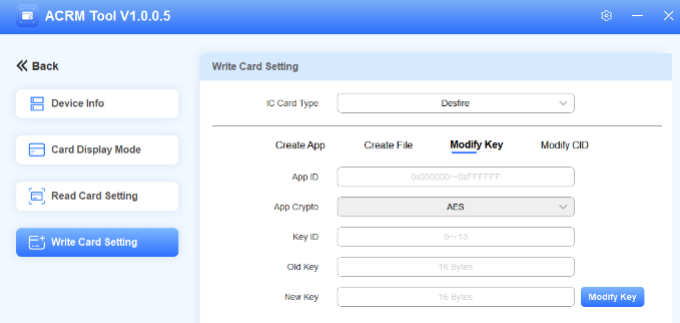
Modify Key
You can modify the App Key of specific keys. Then, assign different keys to personnel with different permissions to set cards.
1.Enter the App ID and the desired Key ID.
2.Enter the Old Key.
3.Enter the New Key and click Modify Key.
Tip
If writing the card fails, remove the card, put it back on the ACR-CID01 and try again.
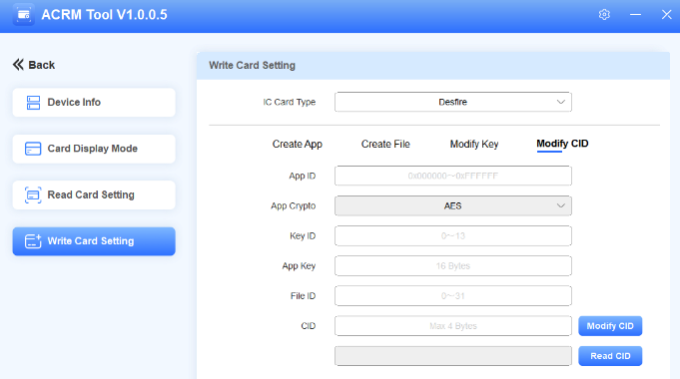
Modify CID
1.Enter the App ID and Key ID. Please note that this Key should be granted permission to write and read the CID on the Create File interface.
2.Enter the App Key and File ID.
3.Enter the new CID with 4 bytes at most.
You can click Read CID to check the card code.
Tip
If writing the card fails, remove the card, put it back on the ACR-CID01 and try again.
Card Reading
The ACR-CID01 supports reading unencrypted IC cards, Mifare Classic, Mifare Plus, and Desfire cards. Before reading cards, make sure you select the right IC card type.
Note
• For unencrypted cards, you can output card codes by directly placing the card on the device.
• For encryption-featured cards, you need to first encrypt them.
◦ If the card is encrypted and provided by the third-party service provider, please confirm the encryption information with the provider.
◦ If the card is not encryted, you can use the ACR-CID01 to encrypt it. Please refer to the Card Writing section.
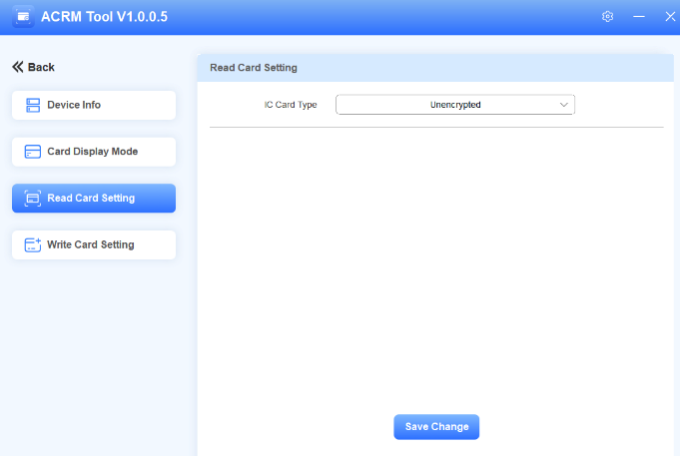
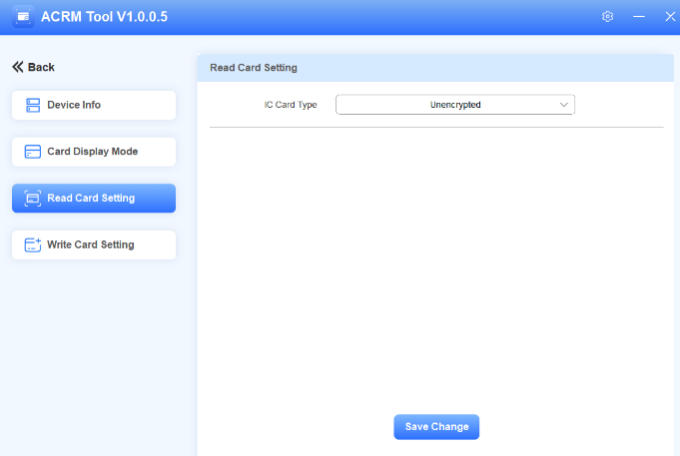
Select the IC card type on the Read Card Setting interface.
Unencrypted Cards
1.Set the IC Card Type to Unencrypted which is the default option.
2.Click Save Change.
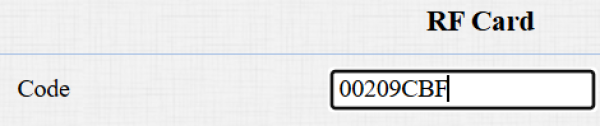
3.Move your mouse cursor to the desired box and place the card on the device.
The card code will display automatically.
Mifare Classic
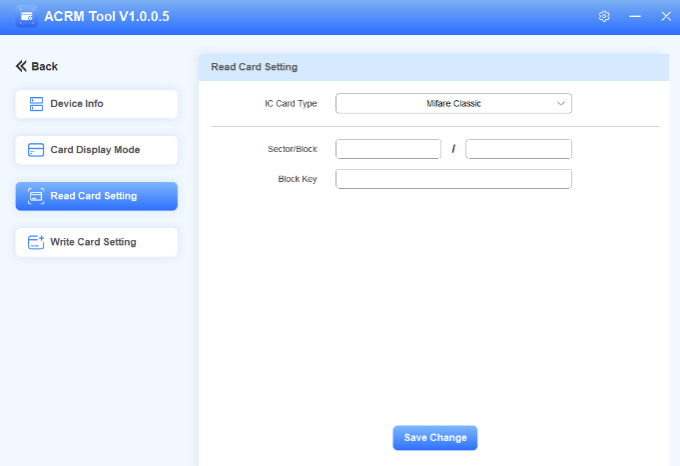
1.Set the IC Card Type to Mifare Classic.
2.Enter the sector and block numbers that store the encrypted card data.
3.Enter the block key.
4.Click Save Change.
5.Move your mouse cursor to the desired box and place the card on the device. The card code will display automatically.
Mifare Plus
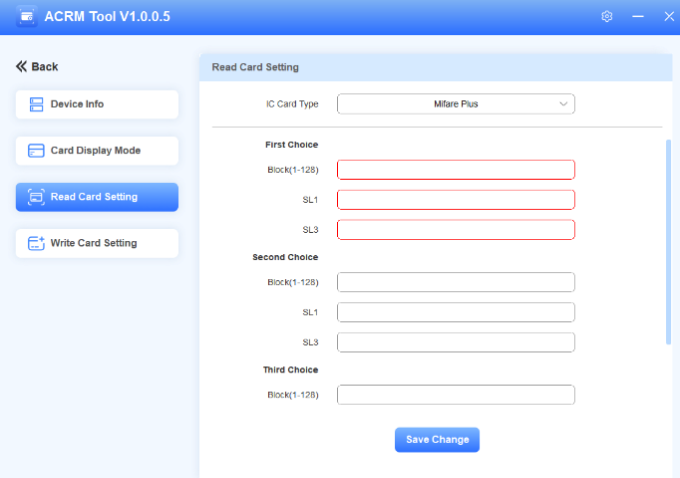
1.Set the IC Card Type to Mifare Plus. You can set up three choices. This means you can use three types of Mifare Plus cards. When swiping a card, as long as one of the choices matches the card’s SL1 or 3 key, the card code in the block you specified will be output.
2.Specify the block(s) to be read in the choice(s).
3.Enter the SL1 or SL3 key(s).
4.Click Save Change.
5.Move your mouse cursor to the desired box and place the card on the device. The card code will display automatically.
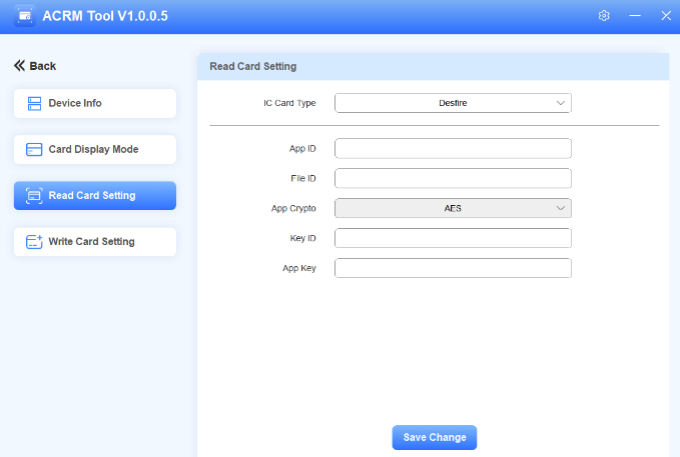
Desfire
1.Set the IC Card Type to Desfire.
2.Enter the App ID, File ID, Key ID, and App Key.
3.Click Save Change.
4.Move your mouse cursor to the desired box and place the card on the device. The card code will display automatically.

 .
.


 .
.
 or wave your hands near the control unit to open the door. A pop-up prompt will be displayed for the door opening success.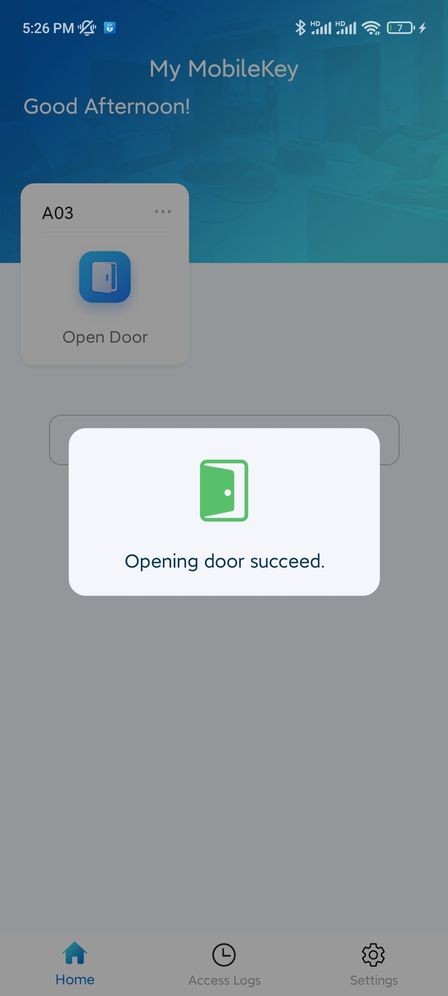
 . The access history will be displayed.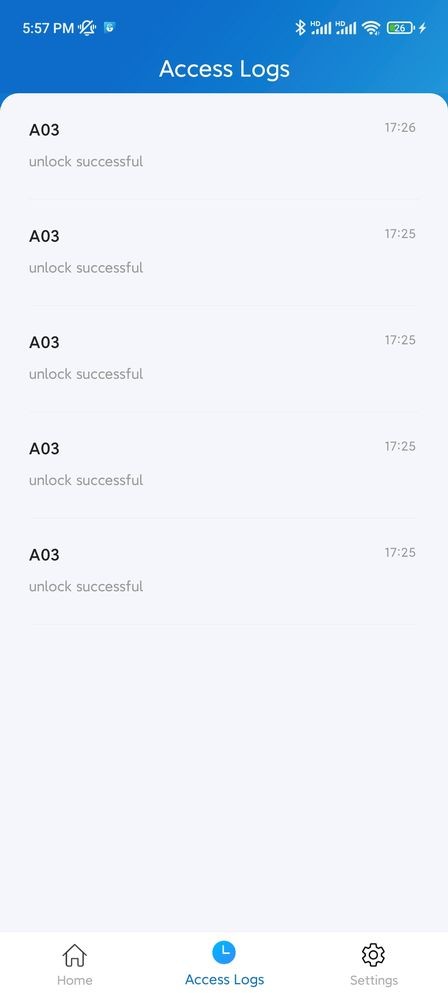
 .
.


 in the upper right corner.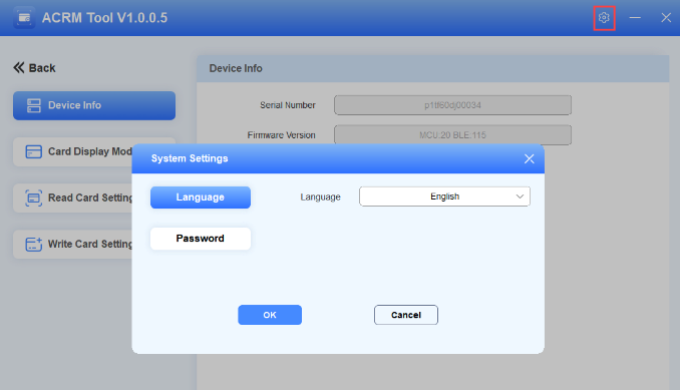
 in the upper right corner and click Password.